
EV CHARGER HELP
Help with your EV charger
Choose your charger below for what the lights mean, how to use the app, reconnecting to wifi and simple fixes, plus links to Sigenergy and Tesla’s own help pages and videos.
Safety first. Smoke, sparks, a burning smell, or a damaged cable or plug? Stop charging and don’t touch the charger. If there’s smoke or fire, get everyone out and call 000. Only switch off the charger’s circuit breaker if it’s safe to do so. Never open the cover of your charger.
CHOOSE YOUR CHARGER
Which charger do you have?
Tap your charger to jump to its guide. The brand name is on the front of the charger.

Sigenergy EV chargers
Sigen EV AC Charger and SigenStor EV DC

Tesla Wall Connector
Works with most electric cars
SIGENERGY
Sigenergy EV chargers
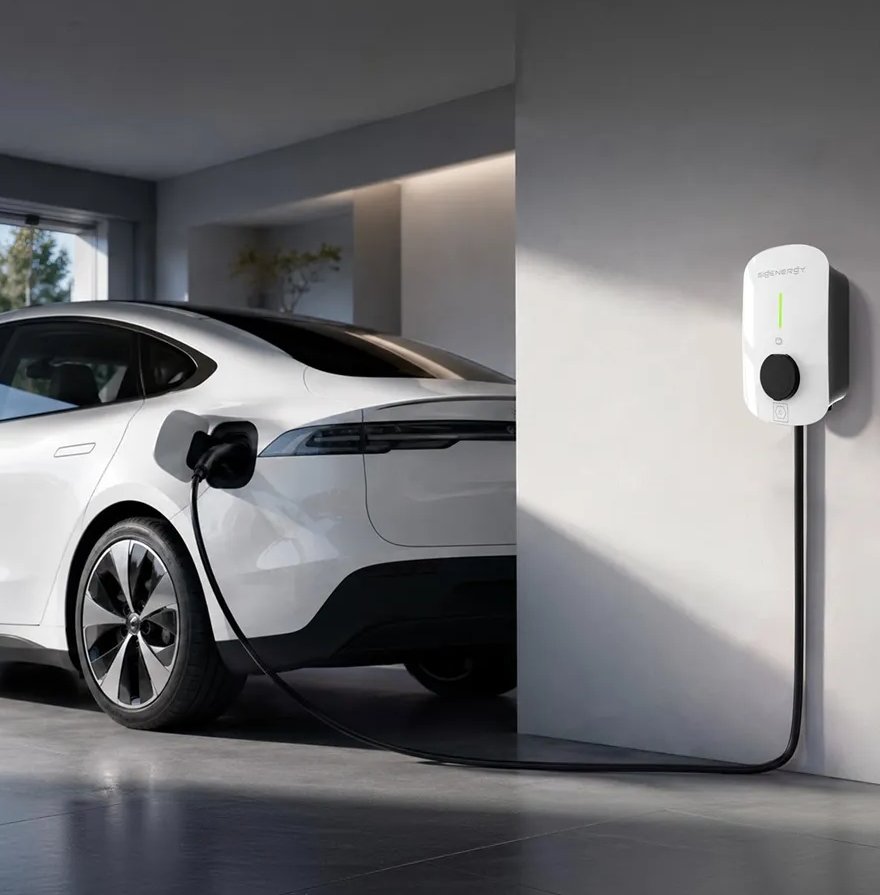
This guide covers the Sigen EV AC Charger, which mounts on your wall, and SigenStor EV DC, the charging module that sits in your SigenStor battery stack. For questions about the app and settings, Sigenergy’s own help pages and videos are the quickest way to an answer.
QUICK FIX
Changed your modem or internet provider?
If the app shows your charger as offline after a new modem, a new wifi password or a change of internet provider, it just needs to be reconnected to your new wifi.
Remember, your charger can still charge your car.
The app and solar charging may not work until it’s reconnected, but in most cases you can still start charging with your Sigen card.
Your charger uses your home internet to talk to the app, so an internet dropout, a new modem or a change of provider will stop it updating. These are outside our control, but reconnecting is quick to do yourself.
Haven’t changed anything?
Turn your modem off for 30 seconds, then back on. Wait 15 minutes and check the app again.
How to reconnect it
Have a Sigenergy battery or inverter too? Reconnect that first using our Sigenergy quick fix. If your charger connects through your Sigenergy system, it should come back online once the system is reconnected.
If your charger has its own wifi connection:
- Open the mySigen app and select your charger.
- Follow the network setup steps and choose your new wifi network.
- Enter your new wifi password and save.
- Check the first light on the charger. When it slowly pulses, the charger is back online.
Some Sigen chargers use 4G instead of wifi. A new modem won’t affect these.
Still offline?
If you’ve followed the steps and Sigenergy’s guide and it still won’t reconnect, we can book a technician to reconnect it for you. A service fee applies for reconnection visits.
IS IT WORKING?
What the lights mean
The Sigen EV AC Charger has a row of lights on the front. Here’s what they’re telling you.
- No lights: the charger isn’t getting power. Check the charger’s circuit breaker at your switchboard.
- All lights on in different colours: the charger is starting up. Give it a minute.
- First light slowly pulsing: ready, and connected to the internet.
- First light on and steady: ready, but not connected to the internet. See the quick fix.
- All lights flashing: your Sigen card has been read and it’s ready to charge. If they keep flashing and charging doesn’t start, unplug the cable and push it back in firmly.
- Lights moving along the row: charging.
- All lights slowly pulsing: plugged in and waiting for your scheduled charging time.
- All lights on and steady: charging has finished, or it’s waiting for you to swipe your Sigen card.
- Some lights flashing and it won’t charge: the charger has found a problem, such as a power supply issue, overheating or an earth fault. Unplug the car and see common problems.
SigenStor EV DC
The light on SigenStor EV DC is off when there’s no power, steady when it’s ready or finished, and blinks while charging. After you plug in, it takes 30 to 40 seconds to check itself and connect to your car, so give it time before trying again.
YOUR APP
Using the mySigen app
The mySigen app lets you start and stop charging, choose how your car charges and see where the power is coming from.
Starting and stopping
Push the plug fully into your car, then start charging in the app or swipe your Sigen card on the charger. To stop, swipe your card again or tap Stop in the app. Charging also stops by itself when your car is full.
Choosing how it charges
- Fast Charging uses as much power as is available, from your solar and the grid, plus your battery if Battery Boost is on.
- PV Surplus Charging only uses spare solar, so it’s the cheapest way to charge. It can’t start at night unless you turn on Grid Charging.
- Battery Boost lets your home battery help charge the car, down to a level you choose.
- Schedules let you charge at set times, like solar charging during the day and off peak charging overnight.
Reconnecting to wifi
New modem, wifi password or internet provider? Follow the quick fix steps above.
Who can use your charger
Usually your charger needs your Sigen card or the app to start, so other people can’t use it. If this setting is turned off in the app, any car can charge from it.
App questions
For help with the app and its settings, see Sigenergy’s help pages and videos.
COMMON PROBLEMS
What’s going on?
Tap a problem to see what to check first.
My car is plugged in but won’t charge
Check the plug is pushed all the way into your car and that charging has been started with your Sigen card or in the app. If you use a charging schedule, the charger won’t start outside the times you’ve set. Also check your car’s own charging settings aren’t holding it back. Unplug, wait a few seconds and plug in again.
It won’t charge at night
PV Surplus Charging only uses spare solar, so it can’t start after dark. Switch to Fast Charging, or turn on Grid Charging in the app and set a limit on how much power it can take from the grid.
Charging is slower than I expected
In PV Surplus Charging the speed follows your spare solar, so it slows down on cloudy days and when your home is using more power. Your car also sets its own top charging speed, and homes with single phase power charge more slowly than three phase. Switch to Fast Charging if you need a full charge sooner.
My Sigen card won’t start charging
In the mySigen app, open Card Management, delete the card and add it again. Hold the card flat over the card reader on the charger.
The charger has no lights
It isn’t getting power. Check your switchboard to see if the charger’s circuit breaker or safety switch has tripped. If it trips again when you switch it back on, leave it off and contact us.
Some lights are flashing and it won’t charge
The charger has found a problem, such as a power supply issue or overheating. Unplug the car, check the mySigen app for an alert and try again in a few minutes. If it keeps happening, stop using the charger and contact us.
RESTARTING AND CARE
Restarting and looking after it
Restarting the charger
- Unplug the cable from your car.
- At your switchboard, switch off the circuit breaker for the EV charger.
- Wait 30 seconds, then switch it back on.
- Give the charger a minute to start up. All the lights come on while it gets ready.
Only do this if it’s safe, and never open the charger’s cover.
Looking after it
Every few months, switch the charger off and check the plug and cable for dust or damage. Wipe them with a dry cloth, and don’t use water, alcohol or cleaning sprays. Hang the cable up after charging so it stays dry and isn’t driven over.
MANUALS AND WARRANTY
Manuals and warranty
Sigenergy’s manuals are in their download centre. Some need a free login.
Sigenergy’s warranty terms for your charger are on their warranty page. Our 10 year workmanship warranty covers the installation.
If you think something is faulty and covered by warranty, contact us first and we’ll handle the claim with Sigenergy for you.
Our warranties are in addition to your rights under the Australian Consumer Law.
TESLA
Tesla Wall Connector
The Tesla Wall Connector charges most electric cars, not just Teslas. For questions about the Tesla app and settings, Tesla’s own help pages are the quickest way to an answer.
QUICK FIX
Changed your modem or internet provider?
If the app shows your charger as offline after a new modem, a new wifi password or a change of internet provider, it just needs to be reconnected to your new wifi.
Remember, your Wall Connector still charges your car while it’s offline.
Wifi is only used for the Tesla app, your charging history and software updates.
Your Wall Connector uses your home internet to talk to the app, so an internet dropout, a new modem or a change of provider will stop it updating. These are outside our control, but reconnecting is quick to do yourself.
Haven’t changed anything?
Turn your modem off for 30 seconds, then back on. Wait 15 minutes and check the app again.
How to reconnect it
- Unplug the cable from your car and keep it unplugged until you’re finished.
- At your switchboard, switch off the Wall Connector’s circuit breaker for five seconds, then switch it back on. If you can’t get to the switchboard, hold the button on the charging handle for five seconds, until all the lights come on. The light will pulse green while the charger broadcasts its own wifi for about 15 minutes.
- Standing near the charger, join the wifi network on your phone called TeslaWallConnector followed by some letters and numbers. The password is on the front of your Quickstart Guide. If your phone says this network has no internet, that’s normal.
- Open a web browser and go to 192.168.92.1, then choose Wi-Fi and select your new network.
- Enter your wifi password and wait until Connected to Tesla and Connected to Internet both show a tick.
Your Wall Connector needs a 2.4 GHz wifi network. It can take up to 24 hours for the app to catch up.
Still offline?
If you’ve followed the steps and Tesla’s guide and it still won’t reconnect, we can book a technician to reconnect it for you. A service fee applies for reconnection visits.
IS IT WORKING?
What the lights mean
The light bar on the front of your Wall Connector shows what it’s doing.
- Solid green: ready to charge.
- Pulsing blue: connecting to your car. Give it a moment.
- Solid blue: connected, but your car isn’t asking for power yet. Check your car’s charging schedule.
- Two blue blinks: connected but not ready to charge. Check the schedule and access settings in the Tesla app.
- Pulsing green: in setup mode and broadcasting its own wifi for up to 15 minutes.
- No lights: no power. Check for a power outage or a tripped circuit breaker at your switchboard.
- Red light: the Wall Connector has found a fault. See common problems.
YOUR APP
Using the Tesla app
Add your Wall Connector to the Tesla app to set charging schedules, see your charging history and get software updates.
Adding it to the app
- In the Tesla app, tap the menu in the top right corner, then Add Product.
- Scan the QR code on your Wall Connector’s Quickstart Guide and join the Wall Connector’s wifi when asked.
- Connect it to your home wifi and follow the remaining steps. Keep the app open, as this can take up to five minutes.
Schedules
You can set your own schedule or use the default off peak schedule. Tap Start Charging on the home screen to charge outside your schedule. If you also have a schedule set in your car, make sure both allow charging at the same times.
Charging from your solar
If you have a Tesla Powerwall and drive a Tesla, the Charge on Solar feature in the Tesla app can charge your car using spare solar.
Reconnecting to wifi
New modem, wifi password or internet provider? Follow the quick fix steps above.
Lost your Quickstart Guide?
You’ll need it for the wifi password and QR code. Use Contact Support in the Tesla app, or Tesla’s Diagnose tool with your part number and serial number handy.
App questions
For help with the app and its settings, see Tesla’s help pages and videos.
COMMON PROBLEMS
What’s going on?
Tap a problem to see what to check first.
My car is plugged in but won’t charge
If the light is solid blue, the Wall Connector is ready but your car isn’t asking for power. Check the charging schedule in your car and in the Tesla app, and make sure the plug is pushed fully into the car. Two blue blinks usually mean a schedule or access setting in the Tesla app is stopping it. If the light is pulsing blue, give it a moment to connect.
The charger has no lights
The Wall Connector isn’t getting power. Check for a power outage, then check whether its circuit breaker or safety switch has tripped at your switchboard. If it trips again when you switch it back on, leave it off and contact us.
There’s a red light
The Wall Connector has found a fault. Unplug the car and restart the charger at its circuit breaker. If the red light comes back, use Tesla’s Diagnose tool, which walks you through the fault and lets you send Tesla a support request.
I can’t find the Wall Connector’s wifi network
It only broadcasts its own wifi for about 15 minutes after a restart, while the light pulses green. Make sure the car is unplugged, restart it at the circuit breaker and stand close to the charger while you look for the network.
It won’t connect to my home wifi
The Wall Connector needs a 2.4 GHz network. Some modems combine 2.4 GHz and 5 GHz under one network name, or use mixed security settings, which can stop it connecting. Your internet provider or modem maker can help you set up a separate 2.4 GHz network.
Charging is slower than I expected
Your car sets its own top charging speed, and so does the circuit your charger is on. On a single phase 32 amp circuit, the Wall Connector delivers up to 7.4 kW, which adds about 50 km of range an hour to a Model 3 or Model Y. Other cars will vary.
RESTARTING AND CARE
Restarting and looking after it
Restarting the Wall Connector
- Unplug the cable from your car.
- At your switchboard, switch off the Wall Connector’s circuit breaker.
- Wait five seconds, then switch it back on.
- The lights will come on as it starts up.
Only do this if it’s safe, and don’t try it during a power outage or a storm. Never open the charger’s cover.
Looking after it
Hang the cable back on the charger after each use so it stays clean and isn’t driven over. Check the plug and cable now and then for damage. If you see any, stop using it and contact us.
MANUALS AND WARRANTY
Manuals and warranty
Tesla’s installation and product guides are on their product guides page.
Tesla covers the Wall Connector for 4 years from the invoice date when it’s used at home. Our 10 year workmanship warranty covers the installation.
If you think something is faulty and covered by warranty, contact us first and we’ll help with the claim.
Our warranties are in addition to your rights under the Australian Consumer Law.
STILL NEED HELP?
Talk to a real person
Tried the guides and your manufacturer’s help pages and still stuck? Our local team installed your system and we’re here to help. If you can, send a photo of your inverter screen or lights and a screenshot of your app. It helps us sort things out faster.