
TESLA POWERWALL HELP
Help with your Tesla Powerwall
Guides for Powerwall 2 and Powerwall 3: what the lights mean, reconnecting the Tesla app and where to find Tesla’s own help and videos.
Safety first. Smoke, sparks, a burning smell, or crackling from your inverter or battery? Get everyone out, call 000 and tell them you have solar or a battery. Only use the shutdown procedure at your switchboard if it’s safe to do so. Never open the cover of an inverter or battery.
Product notice for Powerwall 2. Some Powerwall 2 units sold between November 2020 and August 2025 are part of a safety recall, because the battery cells can overheat. Tesla may have already lowered your battery’s charge remotely and will show a notice in the Tesla app. A free replacement is arranged through your installer, so contact us if you have questions. Powerwall 3 is not affected. Tesla’s replacement page
QUICK FIX
Changed your modem or internet provider?
If your app stopped updating after a new modem, a new wifi password or a change of internet provider, your system just needs to be reconnected to your new wifi.
Remember, your solar and Powerwall are still working.
It’s only the monitoring and reporting in your app that has stopped. Your system keeps making and storing power as normal while it’s offline.
Your system uses your home internet to send data to the app, so an internet dropout, a new modem or a change of provider will stop the app updating. These are outside our control, but reconnecting is quick to do yourself.
Haven’t changed anything?
Turn your modem off for 30 seconds, then back on. Wait 15 minutes and check the app again.
How to reconnect it
Powerwall 2 with Backup Gateway 2
- Stand near the Gateway and open the Tesla app.
- Go to Settings, then Configure Wi‑Fi.
- Scan the QR code behind the Gateway’s glass door.
- Join the TEG network it shows, then choose your new home wifi and enter the password.
Powerwall 3
- Open the Tesla app and tap Device Offline, then Powerwall 3.
- Open the cover over the side switch and tap Pair.
- Switch the side switch off, then on again, and accept the request on your phone.
- Choose your new home wifi and enter the password.
Still offline?
If you’ve followed the steps and Tesla’s guide and it still won’t reconnect, we can book a technician to reconnect it for you. A service fee applies for reconnection visits.
FROM TESLA
Tesla help and videos
For questions about the app, settings and everyday use, Tesla’s own help pages and videos are the quickest way to an answer.
IS IT WORKING?
What the lights mean
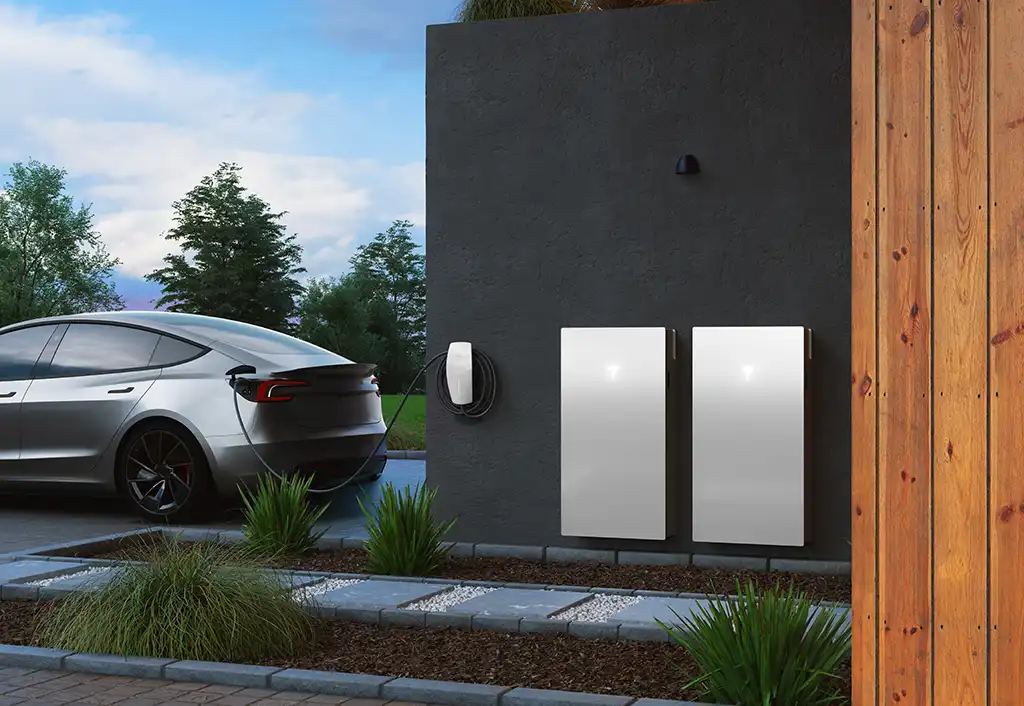
Not sure which Powerwall you have? Powerwall 3 has the Tesla logo light on the front. Powerwall 2 has a light strip on the right side.
Powerwall 3 (logo light)
- Solid white: working normally
- Flashing white: idle
- Off: switched off or asleep
- Flashing red: a fault. Check the Tesla app for an alert
Powerwall 2 (side light)
- Solid: on and idle
- Slowly fading: charging or discharging
- Flashing: a fault. Check the Tesla app for an alert
- Off: switched off
YOUR APP
The Tesla app
The Tesla app shows your solar, home, battery and grid in real time, plus your history. You can set your backup reserve, turn on Storm Watch and get an alert if the power goes out.
Reconnecting to wifi
Changed your modem, wifi password or internet provider? Follow the quick fix steps at the top of this page.
Remember, your solar and Powerwall are still working. Only the app has stopped updating.
App questions
For help using the app and its settings, see Tesla’s help and videos.
COMMON PROBLEMS
What’s going on?
Tap a problem to see what to check first.
The app says “Overloaded”
Too many large appliances are running from the battery at once, often during a blackout. Switch off big loads like ovens, heaters or air conditioners. Powerwall tries again within a couple of minutes.
The app says “Waiting for Solar” or “Waiting for User Input”
Your battery ran very low during a blackout. Turn off large appliances. Once the sun is out, switch the Powerwall side switch off and on again so it can recharge from your solar.
The app says “Breaker Open” or “Side Switch Off”
A Powerwall breaker or the side switch has been turned off. Switch it back on. If it trips again, leave it off and contact us.
The app says “Solar Production Limited” or “Powerwall Disabled”
These need a technician. Take a screenshot of the alert and contact us.
My power went off in a blackout
Powerwall needs charge left to back up your home. Below about 10% it goes into standby. Check what’s on your backed up circuits and keep a healthy backup reserve in the app. Large loads can also overload it.
The app says my system is offline
It’s usually your home wifi, and your system keeps running. Follow the quick fix steps at the top of this page.
RESTARTING YOUR SYSTEM
How to restart it safely
Tesla’s official restart steps. Only do this if you’re comfortable, and never pull fuses or open the Gateway cover.
Your system has a shutdown procedure sign fitted at the switchboard or inverter. Always follow that sign, because it matches how your system was installed.
Before you start: switch off your solar inverter first.
Powerwall 2
- Turn the Powerwall On/Off switch to off.
- Switch off the Powerwall AC breaker.
- Switch off the Gateway AC breaker.
- Wait at least 1 minute.
- Switch both AC breakers back on.
- Turn the Powerwall switch back on, then switch your solar back on.
Powerwall 3
- Turn the Powerwall 3 On/Off switch to off.
- Switch off the DC isolator on the Powerwall 3.
- Switch off the Powerwall 3 AC breaker.
- Switch off the Gateway AC breaker.
- Wait at least 1 hour.
- Switch both AC breakers back on.
- Turn the Powerwall 3 switch back on.
- Switch the DC isolator back on.
If it doesn’t come back on normally, don’t keep trying. Contact us.
MANUALS
Guides and manuals
Tesla’s owner manuals and documents are on Tesla’s Powerwall documents page.
WARRANTY
Warranty
Powerwall has a 10 year warranty, with at least 70% of its capacity kept over that time. Keep it connected to the internet, as long periods offline can shorten the warranty. Our 10 year workmanship warranty covers the installation.
If you think something is faulty and covered by warranty, contact us first and we’ll handle the claim with Tesla for you.
Our warranties are in addition to your rights under the Australian Consumer Law.
STILL NEED HELP?
Talk to a real person
Tried the guides and your manufacturer’s help pages and still stuck? Our local team installed your system and we’re here to help. If you can, send a photo of your inverter screen or lights and a screenshot of your app. It helps us sort things out faster.