
FRONIUS HELP
Help with your Fronius inverter
Guides for Fronius Primo, Symo and GEN24 inverters: what the lights and codes mean, reconnecting Solar.web and where to find Fronius’ own help.
Safety first. Smoke, sparks, a burning smell, or crackling from your inverter or battery? Get everyone out, call 000 and tell them you have solar or a battery. Only use the shutdown procedure at your switchboard if it’s safe to do so. Never open the cover of an inverter or battery.
QUICK FIX
Changed your modem or internet provider?
If your app stopped updating after a new modem, a new wifi password or a change of internet provider, your system just needs to be reconnected to your new wifi.
Remember, your solar is still working.
It’s only the monitoring and reporting in your app that has stopped. Your system keeps making power as normal while it’s offline.
Your system uses your home internet to send data to the app, so an internet dropout, a new modem or a change of provider will stop the app updating. These are outside our control, but reconnecting is quick to do yourself.
Haven’t changed anything?
Turn your modem off for 30 seconds, then back on. Wait 15 minutes and check the app again.
How to reconnect it
- Download the Fronius Solar.start app.
- Stand near the inverter and open the inverter’s wifi access point. On a GEN24, touch the sensor on the front once. On a Primo or Symo, choose Setup, then Wifi Access Point on the display.
- Follow the app to connect the inverter to your new wifi network and enter the password.
- Make sure the inverter gets at least two bars of wifi signal. If it’s weaker, it may keep dropping out.
Fronius new router guideSolar.start app help
Still offline?
If you’ve followed the steps and Fronius’s guide and it still won’t reconnect, we can book a technician to reconnect it for you. A service fee applies for reconnection visits.
FROM FRONIUS
Fronius help and videos
For questions about the app, settings and everyday use, Fronius’s own help pages and videos are the quickest way to an answer.
IS IT WORKING?
What the lights mean
Not sure which Fronius you have? GEN24 inverters have two lights and a touch sensor on the front. Primo and Symo inverters have a small display screen.
GEN24: operating light
- Green: working normally
- Flashing green: checking the grid before starting
- Yellow: standby, usually at night
- Red: a fault, and it has stopped sending power. See common problems
- Flashing red: too much running on backup power
- White: a service message. Contact us
GEN24: communication light
- Blue: connected to your wifi
- Red: network problem. The inverter keeps running. See the quick fix
Primo and Symo
- Green: working normally
- Orange: starting up, standby or updating
- Red: it has stopped. There’s a code on the screen, see common problems
YOUR APP
The Fronius Solar.web app
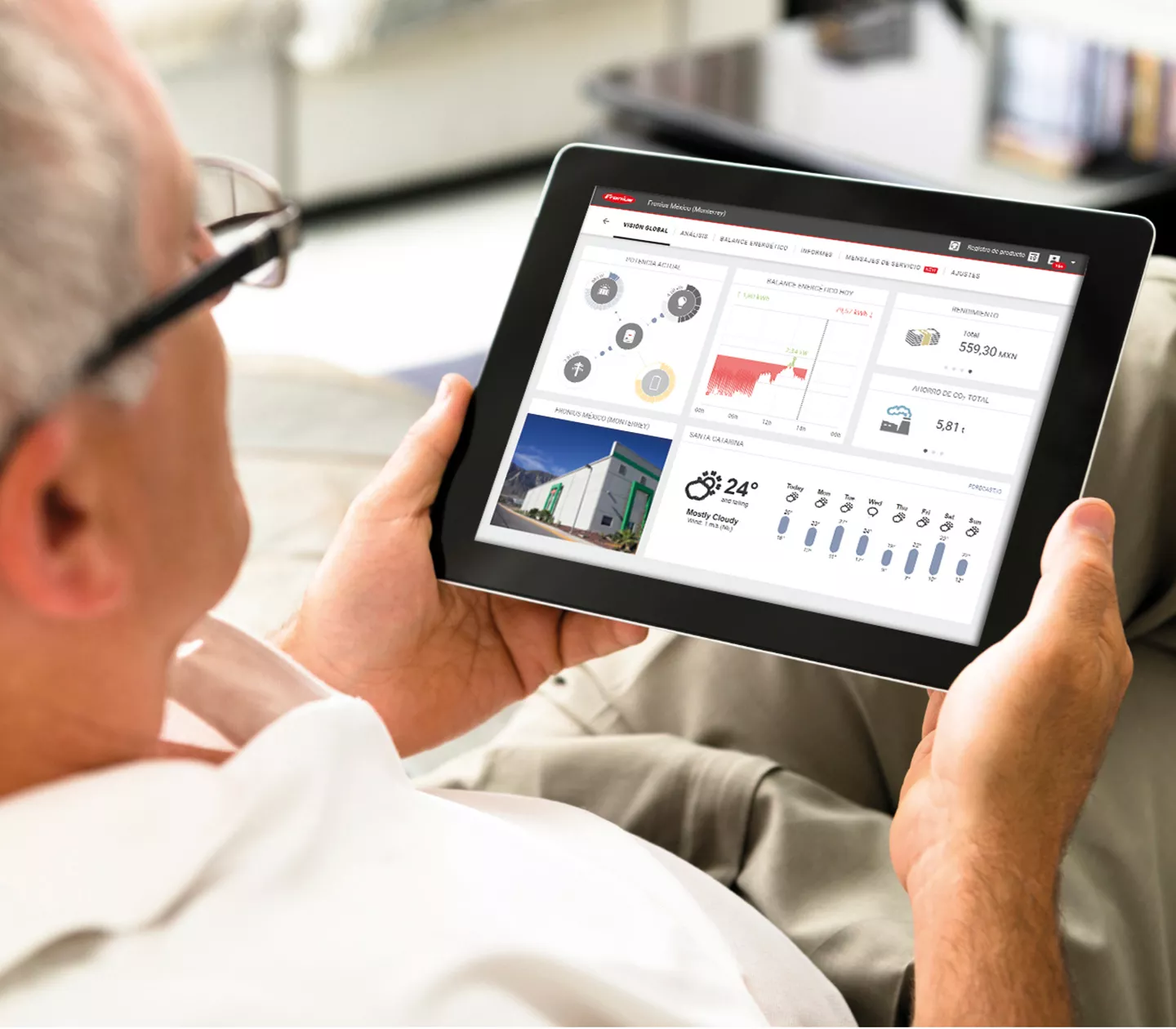
Solar.web shows what your solar is generating, what your home is using and your battery if you have one, with daily and long term history and alerts if something goes wrong.
Download for iPhone
Download for Android
Fronius’ setup app, Solar.start, is used to connect the inverter to wifi: iPhone or Android.
Reconnecting to wifi
Changed your modem, wifi password or internet provider? Follow the quick fix steps at the top of this page.
Remember, your solar is still working. Only the app has stopped updating.
App questions
For help using the app and its settings, see Fronius’s help and videos.
COMMON PROBLEMS
What’s going on?
Tap a problem to see what to check first.
Solar.web says my system is offline (code 996 or 999)
The inverter has lost its internet connection, but it keeps working. Follow the quick fix steps at the top of this page.
Code 306, 307 or 1175
There isn’t enough sunlight, which is normal early in the morning, late in the day or when it’s very cloudy. It clears by itself. If you see it in full sun, check the DC switch on the inverter is on.
Code 107 (no grid)
The inverter can’t see the grid. Check whether there’s a blackout in your street, and that the solar breaker in your switchboard is on. If the power is on and the code stays, contact us.
Code 1030 on a GEN24
An emergency stop or fire brigade switch has been turned on. Check whether one has been switched, and if not, contact us.
An insulation or arc fault (codes 475, 502 or 240 to 243)
This needs a technician. Leave the system as it is and contact us.
My power went off in a blackout
Primo and Symo inverters switch off in a blackout, which is normal and required for safety. GEN24 systems can keep a backup power point or your whole home running, but only if backup was installed with your system.
RESTARTING YOUR SYSTEM
How to restart it safely
Fronius’ restart steps. Only do this if you’re comfortable, and never open the inverter.
Your system has a shutdown procedure sign fitted at the switchboard or inverter. Always follow that sign, because it matches how your system was installed.
- If you have a battery, switch it off first.
- Switch off the AC breaker for the inverter at your switchboard.
- Switch off the DC switch on the inverter.
- Wait until the inverter is completely dark, with no lights on. This takes about 30 seconds.
- If you have a battery, switch it back on.
- Switch the AC breaker back on, then the DC switch.
If it doesn’t come back on normally, don’t keep trying. Contact us.
MANUALS
Guides and manuals
Fronius’ manuals are on their Australian manuals page. Your model is printed on the label on the side of the inverter.
WARRANTY
Warranty
Fronius inverters come with a 10 year warranty when they’re registered in Solar.web. Our 10 year workmanship warranty covers the installation.
If you think something is faulty and covered by warranty, contact us first and we’ll handle the claim with Fronius for you.
Our warranties are in addition to your rights under the Australian Consumer Law.
STILL NEED HELP?
Talk to a real person
Tried the guides and your manufacturer’s help pages and still stuck? Our local team installed your system and we’re here to help. If you can, send a photo of your inverter screen or lights and a screenshot of your app. It helps us sort things out faster.