
SUNGROW HELP
Help with your Sungrow system
Guides for Sungrow hybrid and solar inverters and SBR batteries: what the light means, reconnecting the iSolarCloud app and where to find Sungrow’s own help.
Safety first. Smoke, sparks, a burning smell, or crackling from your inverter or battery? Get everyone out, call 000 and tell them you have solar or a battery. Only use the shutdown procedure at your switchboard if it’s safe to do so. Never open the cover of an inverter or battery.
QUICK FIX
Changed your modem or internet provider?
If your app stopped updating after a new modem, a new wifi password or a change of internet provider, your system just needs to be reconnected to your new wifi.
Remember, your solar is still working.
It’s only the monitoring and reporting in your app that has stopped. Your system keeps making power as normal while it’s offline.
Your system uses your home internet to send data to the app, so an internet dropout, a new modem or a change of provider will stop the app updating. These are outside our control, but reconnecting is quick to do yourself.
Haven’t changed anything?
Turn your modem off for 30 seconds, then back on. Wait 15 minutes and check the app again.
How to reconnect it
- Open the iSolarCloud app and go to Commissioning, then Network configuration.
- Enter your new wifi password, press the button on the wifi module once, then tap Continue.
- If that doesn’t work, press the module button three times and choose your new network from the list.
The wifi module only works with 2.4 GHz wifi.
Still offline?
If you’ve followed the steps and Sungrow’s guide and it still won’t reconnect, we can book a technician to reconnect it for you. A service fee applies for reconnection visits.
FROM SUNGROW
Sungrow help and videos
For questions about the app, settings and everyday use, Sungrow’s own help pages and videos are the quickest way to an answer.
IS IT WORKING?
What the lights mean
Sungrow inverters have one status light on the front.
- Solid blue: working normally
- Flashing blue: starting up or on standby
- Red: there’s a fault. Check the app for the error and see common problems below
- Off: the inverter is switched off. There may still be voltage inside, so never open it
YOUR APP
The iSolarCloud app
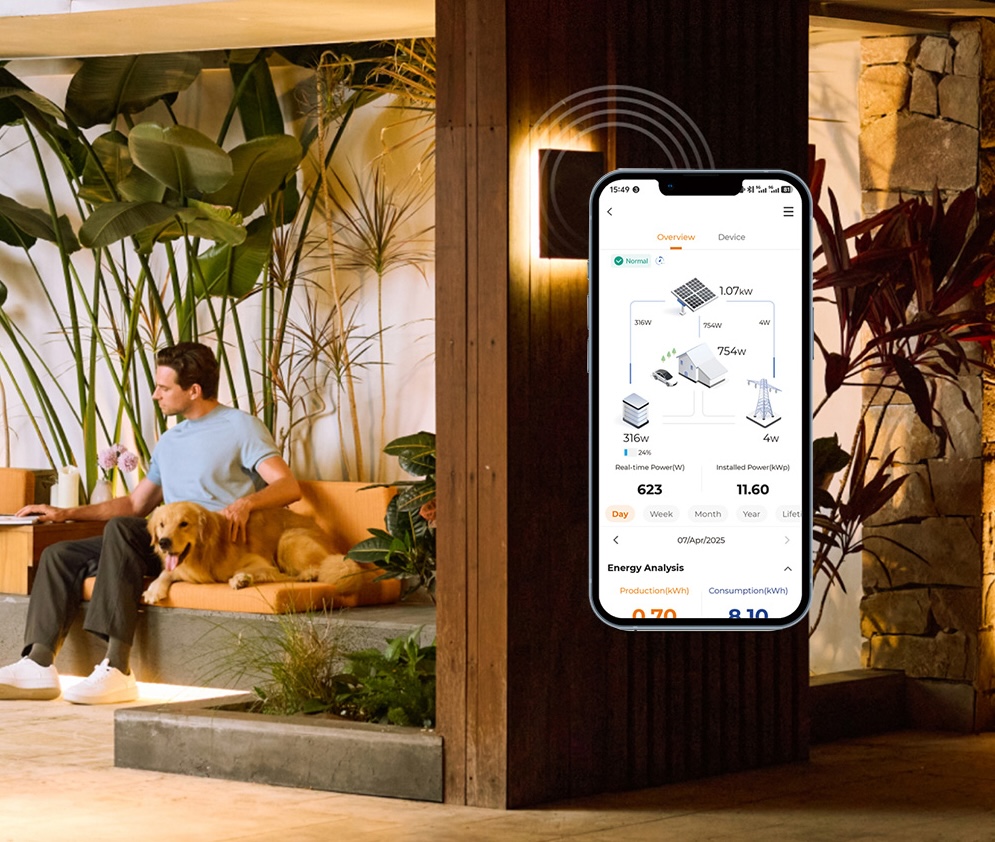
iSolarCloud shows what your solar is generating, your battery and home use, and any faults, with push alerts if something goes wrong.
Reconnecting to wifi
Changed your modem, wifi password or internet provider? Follow the quick fix steps at the top of this page.
Remember, your solar is still working. Only the app has stopped updating.
App questions
For help using the app and its settings, see Sungrow’s help and videos.
COMMON PROBLEMS
What’s going on?
Tap a problem to see what to check first.
The app says my system is offline
It’s usually your wifi, and your system keeps running. Follow the quick fix steps at the top of this page.
Fault 039 (low insulation)
This is an insulation fault, often after heavy rain. It needs a technician to check. Don’t touch the wiring, and contact us.
EC51 or a backup overload message
Too much is running from the battery during a blackout. Switch off large appliances like ovens, heaters and air conditioners. The inverter restarts by itself, though after repeated overloads it can take up to 10 minutes.
The inverter says it’s too hot or is limiting power
On hot days the inverter can reduce its output to protect itself. Make sure nothing is stacked against it or blocking the vents. If it happens often, contact us.
EC714 or a battery communication fault
The inverter can’t talk to the battery. Take a screenshot of the app and contact us.
My power went off in a blackout
A Sungrow hybrid with a battery and backup keeps your backed up circuits running while there’s solar or battery charge. Solar only inverters switch off in a blackout, which is normal and required for safety.
RESTARTING YOUR SYSTEM
How to restart it safely
Sungrow’s restart order. Only do this if you’re comfortable, and never open the inverter.
Your system has a shutdown procedure sign fitted at the switchboard or inverter. Always follow that sign, because it matches how your system was installed.
To switch off
- Switch off the inverter’s AC breaker or isolator at the switchboard first.
- Then switch off the DC switch on the inverter.
To switch back on, Sungrow says to follow this order exactly:
- Switch on the AC breaker.
- Switch on the battery breaker, if you have a battery.
- Turn on the battery.
- Switch on the DC switch on the inverter.
Never disconnect the battery while it’s running. If it doesn’t come back on normally, don’t keep trying. Contact us.
MANUALS
Guides and manuals
Sungrow’s manuals are on the Sungrow support site (choose Australia). Your model is printed on the label on the side of the inverter.
WARRANTY
Warranty
Sungrow inverters have a 10 year warranty. SBR batteries are covered for 10 years with at least 70% capacity, as long as the battery stays connected to iSolarCloud. Our 10 year workmanship warranty covers the installation.
If you think something is faulty and covered by warranty, contact us first and we’ll handle the claim with Sungrow for you.
Our warranties are in addition to your rights under the Australian Consumer Law.
STILL NEED HELP?
Talk to a real person
Tried the guides and your manufacturer’s help pages and still stuck? Our local team installed your system and we’re here to help. If you can, send a photo of your inverter screen or lights and a screenshot of your app. It helps us sort things out faster.